VM Scream for Android: How to Access and Play on Your Mobile Phone
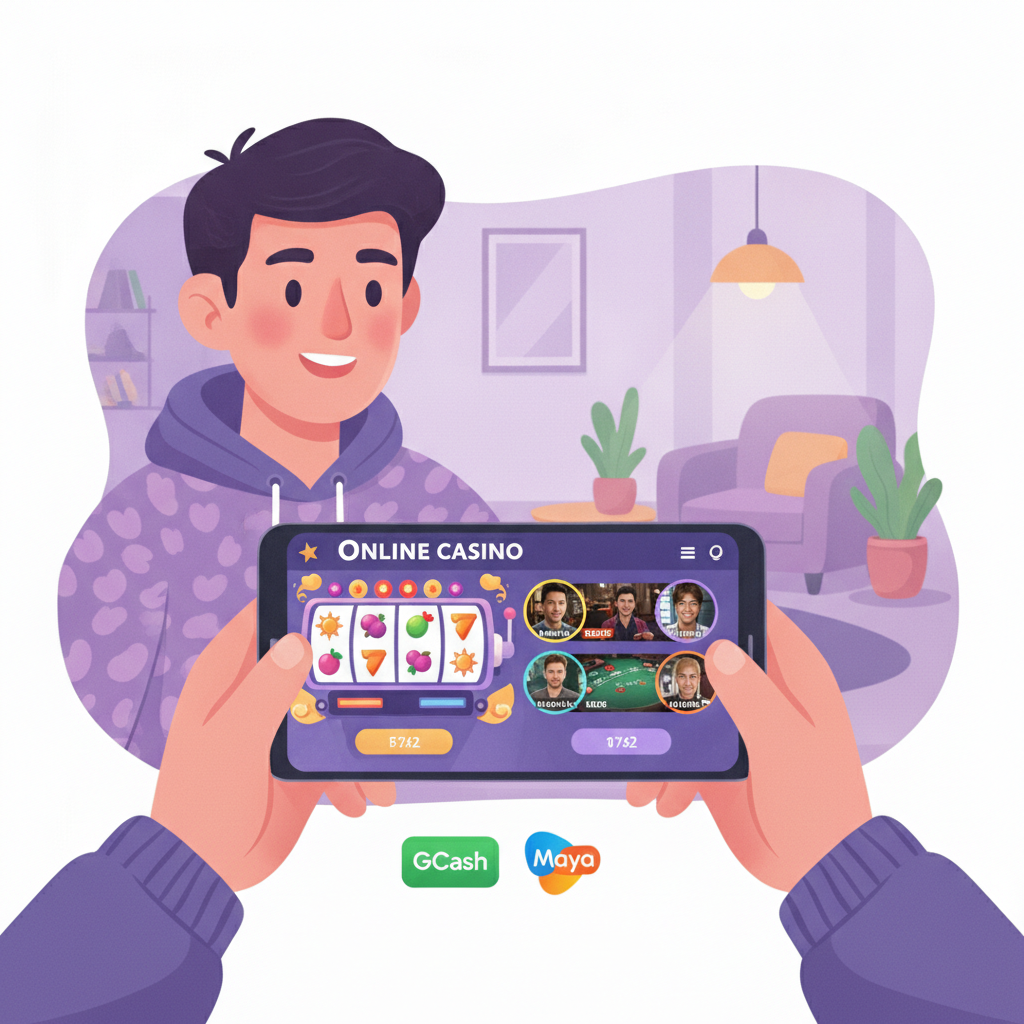
How to Access VM Scream on Your Android Phone (Browser vs App)
VM Scream offers two ways to play on your Android device: through your mobile browser or by downloading the VM Scream app. Both methods give you access to the full casino, live dealer tables, and sports betting—the choice comes down to how you prefer to navigate.
Mobile browser access is the quickest way to start. Open Chrome, Firefox, or your default Android browser, visit the VM Scream website, and the platform automatically adjusts to your screen size. You don't need to download anything, and updates happen in the background whenever you reload the page. This option works well if you have limited storage space on your phone or if you only play occasionally.
The VM Scream app is a standalone APK file you download directly from the VM Scream site. (It's not available on Google Play, so you'll need to enable "Install unknown apps" for your browser in Android settings.) Once installed, the app sits on your home screen and opens VM Scream in one tap. The interface is the same as the browser version, but some players find the app slightly faster for switching between slots, live tables, and the sportsbook.
If you're new to VM Scream, starting with the mobile browser is simpler—you can register, deposit, and try a few games before deciding whether to download the app.
Logging In and Navigating the Mobile Interface for the First Time
After you complete VM Scream register, you'll receive a username (or email login) and password. On Android, open VM Scream through your browser or app, then tap the Log In button at the top right of the screen.
Enter your credentials and tap Submit. If you've saved your login details in your browser or password manager, Android may offer to auto-fill them—this saves time on repeat visits.
Once you're logged in, the VM Scream homepage displays four main sections, usually arranged as tabs or buttons along the bottom or top of the screen:
- Casino – slots, jackpot games, and video poker
- Live Casino – live dealer blackjack, roulette, baccarat, and game shows
- Sports – pre-match and live betting on PBA, NBA, volleyball, and more
- Account – your balance, transaction history, and profile settings
The layout is designed for thumb navigation: big icons, minimal scrolling, and a search bar if you want to jump straight to a specific slot title or match. Your PHP balance appears at the top of every screen, so you always know how much you have available to bet.
When you're ready to play, tap any game thumbnail. Slots and live tables open in full-screen mode. Sports betting loads a fixture list where you tap a match to see odds and place your wager.
Making Deposits Through GCash or Maya on Android
VM Scream accepts deposits via GCash, Maya, and bank transfer (InstaPay or PESONet). GCash and Maya are the fastest options on mobile, with deposits credited in one to five minutes.
Step-by-step deposit with GCash on Android
- Tap Deposit in your VM Scream account menu. Select GCash as your payment method.
- Enter the amount you want to deposit—minimum is typically PHP 100. Check the deposit page for the current minimum and any channel-specific limits.
- Confirm the transaction. VM Scream will display a GCash reference number or redirect you to the GCash app (if installed) to authorize the payment.
- Complete the payment in the GCash app by entering your MPIN. You'll see a confirmation screen when it's done.
- Return to VM Scream. Your balance updates automatically. If it doesn't appear within five minutes, check the Transactions tab in your account or contact VM Scream support.
Depositing with Maya
The Maya process is nearly identical: select Maya on the deposit page, enter your amount, and you'll be redirected to the Maya app or web checkout. Authorize the payment with your Maya PIN or biometric login, then return to VM Scream. Funds usually arrive within a few minutes.
Bank transfer (InstaPay and PESONet)
If you prefer bank transfer, VM Scream provides deposit instructions with the platform's bank details. Use your bank's mobile app to send the transfer via InstaPay (real-time, up to PHP 50,000) or PESONet (next banking day). Include your VM Scream username or account number as the reference so the payment team can match your deposit. Bank transfers take longer than e-wallets—InstaPay may credit within the hour during banking hours, while PESONet processes overnight.
Always double-check the recipient account details before you send money, and keep a screenshot of the transfer confirmation in case you need to follow up.
Best Practices for Mobile-First Play: Data Usage and Screen Orientation
Playing VM Scream on Android uses mobile data or Wi-Fi. If you're on a limited data plan, here's what to expect:
- Slots typically consume 1–3 MB per session because they load once and run locally. Autoplay and animations don't refresh the connection often.
- Live dealer games stream video in real time and can use 20–50 MB per hour at standard quality. If you're playing over mobile data, live casino is the heaviest load.
- Sports betting uses minimal data—odds refresh in the background, and placing a bet sends only a small request to the server.
To reduce data usage, connect to Wi-Fi whenever possible. If Wi-Fi isn't available, play slots or place pre-match sports bets instead of streaming live tables. Some Android phones let you set data warnings or limits per app—check Settings > Network & Internet > Data Usage to monitor VM Scream.
Screen orientation tips
Most VM Scream games work in both portrait and landscape mode. Portrait is easier for one-handed play when you're browsing slots or checking odds on the sportsbook. Landscape gives you a wider view of live dealer tables and some multi-reel slots with detailed paytables.
Android usually rotates automatically if you have auto-rotate enabled. If a game feels cramped in portrait, flip your phone sideways—the interface will adjust. For sports betting, portrait mode keeps the fixture list and bet slip in easy reach without scrolling.
Battery and performance
Casino games and live streams can drain your battery faster than regular browsing. If you plan a longer session, keep a charger nearby or enable Battery Saver mode in your Android settings. Closing background apps and lowering screen brightness also helps your phone run cooler and last longer.
Additional Tips for First-Time Players on Android
- Save your login using your browser's password manager or Android Autofill. This speeds up the VM Scream login process every time you return.
- Check your balance before you start a new game. The balance widget is always visible, but it's easy to lose track during a long slot session.
- Set a budget for each session. Decide how much you're comfortable depositing—whether it's PHP 100, PHP 500, or more—and stick to it.
- Explore minimum bets before you play. Many slots accept bets as low as PHP 1 or PHP 5 per spin, while live dealer tables may require PHP 50 or PHP 100 per hand. Read the rules or info screen inside each game to confirm.
21+ Only and Responsible Gambling Reminder
VM Scream is for players aged 21 and over only. Online gambling should be an occasional form of entertainment, not a way to make money. Set a deposit limit you can afford, take breaks, and stop if you feel stressed or chasing losses. If you need support, organizations such as the National Center for Mental Health and Gambling Therapy offer free, confidential help.
This guide covers the basics of accessing and playing VM Scream on your Android phone. Whether you use the mobile browser or the app, the platform is built for quick deposits, easy navigation, and a full range of games wherever you are. Start with small bets, get familiar with the interface, and play responsibly.