VM Scream Login Guide: How to Access Your Account on Mobile and Desktop
Where to Find the VM Scream Login Page
Once you have registered your VM Scream account, logging in is straightforward whether you're using a phone or desktop computer.
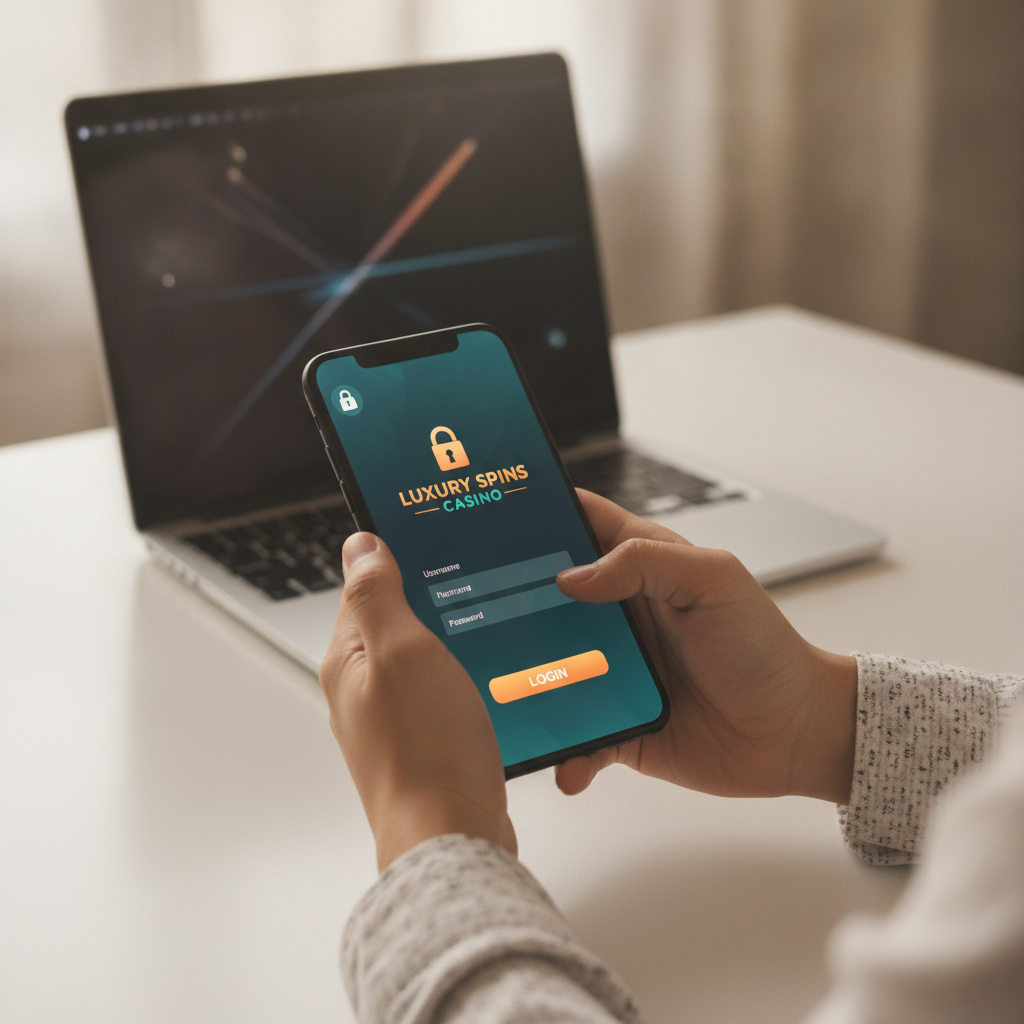
On mobile browsers (Chrome, Safari, or your default Android browser), open your browser and type the VM Scream web address into the URL bar. The login button usually appears in the top-right corner of the homepage as a small button labeled "Login" or "Sign In." Tap it to open the login form.
On desktop or laptop, visit the VM Scream website through your browser. The login button sits in the same position—top-right of the navigation bar. Click it to bring up the login fields.
Some players bookmark the login page on their phone's home screen for faster access. To do this on Android, open the VM Scream site in Chrome, tap the three-dot menu, and select "Add to Home screen." This creates a shortcut icon that takes you directly to the site.
If VM Scream offers a dedicated Android app (check the official website for the latest download link), the login screen appears immediately when you open the app. You won't need to hunt for a button; the username and password fields are front and center.
Important: Always double-check the web address before entering your login details. Scam sites sometimes copy the design of legitimate casinos. Bookmark the official VM Scream URL the first time you visit to avoid phishing pages.
Entering Your Username and Password Correctly on Android Mobile
Logging in on a mobile phone requires a bit more attention than on desktop because of smaller screens and on-screen keyboards.
Step 1: Tap the username field. Your Android keyboard will slide up. Type the exact username you chose during registration. VM Scream login systems are case-sensitive, so "Player123" and "player123" are treated as different usernames. If you're not sure whether you used capital letters, check any confirmation email or SMS you received when you registered.
Step 2: Tap the password field. Enter your password carefully. Because passwords are hidden by dots or asterisks, it's easy to mistype. Many Android keyboards offer a small "eye" icon next to the password field—tap it to reveal what you've typed, then tap again to hide it. This helps you spot mistakes before you submit.
Step 3: Tap the "Login" or "Sign In" button. The system will verify your credentials. If everything matches, you'll land on the VM Scream homepage or lobby, where you can browse slots, live dealer tables, or place bets on PBA and NBA games.
Common mistakes on mobile:
- Auto-fill errors: Android's autofill feature sometimes inserts an old password or the wrong username. If login fails, clear the fields and type manually.
- Extra spaces: Tapping the spacebar by accident adds invisible characters. If you keep getting "incorrect username or password" errors, try retyping without using autofill.
- Caps Lock: Some keyboards enable Caps Lock after certain actions. Check the keyboard indicator before typing your password.
If you're logging in over mobile data rather than Wi-Fi, a slower connection might make the login button seem unresponsive. Wait a few seconds after tapping—don't tap repeatedly, or you may trigger an error.
What to Do If You Forget Your Login Details
Forgetting your username or password happens. VM Scream provides a recovery process directly on the login page.
If you forgot your password:
- On the login screen, look for a "Forgot Password?" or "Reset Password" link. It's usually placed below the password field or near the login button.
- Tap or click the link. You'll be asked to enter the email address or mobile number you used when you registered.
- VM Scream will send a password-reset link to that email or an SMS code to your phone number.
- Open the email or SMS, then follow the instructions. You'll typically be taken to a page where you can create a new password.
- Choose a strong password—mix uppercase and lowercase letters, numbers, and a symbol if allowed. Avoid common words or your birthdate.
- Return to the VM Scream login page and sign in with your username and new password.
If you forgot your username:
Username recovery is less common, but some platforms let you retrieve it using your registered email or phone number. Look for a "Forgot Username?" link on the login page, or contact VM Scream customer support through live chat or the support email listed on the website.
When you message support, have your registered email address and phone number ready. For security, they may ask you to confirm personal details (full name, date of birth) or the last deposit amount. Do not share your password with support—legitimate casino staff will never ask for it.
If you can't access your registered email or phone number:
This is trickier. You'll need to contact VM Scream support and explain the situation. They may require a copy of your government-issued ID (the same one you used for account verification) to prove your identity. Response times vary, so reach out as soon as you realize you've lost access.
Security Tips for Keeping Your Account Safe (21+ Only)
VM Scream accounts hold real money, so protecting your login credentials is critical.
Use a unique, strong password. Don't reuse the password from your GCash account, email, or other online casino. If one service is compromised, a unique password keeps your VM Scream account safe. Aim for at least eight characters, mixing letters, numbers, and symbols.
Enable two-factor authentication (2FA) if available. Some online casinos offer 2FA, which sends a one-time code to your phone whenever you log in. Check the account-security settings inside your VM Scream profile. Even if someone steals your password, they won't get past the second layer without your phone.
Never share your login details. VM Scream accounts are for individual use only. Sharing your username and password—even with family or friends—can lead to disputes over deposits, bets, and winnings. It also violates most casinos' terms of service and may result in account suspension.
Log out after each session on shared devices. If you're using a phone or computer that others can access, always tap "Log Out" when you're done. Simply closing the browser may leave your session active, allowing the next person to place bets or withdraw funds.
Avoid public Wi-Fi for deposits and withdrawals. Open networks in coffee shops or malls can be monitored by third parties. If you must use public Wi-Fi, consider a VPN app to encrypt your connection. For everyday play, mobile data or a password-protected home Wi-Fi network is safer.
Watch out for phishing. Scammers send fake emails or SMS messages pretending to be from VM Scream, asking you to "verify your account" or "claim a bonus" by clicking a link. Always navigate to the VM Scream site by typing the URL yourself or using your saved bookmark. Legitimate emails from the casino will never ask for your password.
Check your account activity regularly. VM Scream's account dashboard usually shows recent logins, deposits, and bets. If you notice unfamiliar activity, change your password immediately and contact support.
Remember: VM Scream is for players aged 21 and over only. Sharing your login with anyone under 21 is against the rules and puts your account at risk. Keep your credentials private and secure.
Responsible Gambling Reminder
Logging in to VM Scream should be fun and entertaining, but it's important to play responsibly. Set a budget before you start—whether it's PHP 100 or PHP 500—and stick to it. If you find yourself logging in more often than planned, chasing losses, or feeling stressed about bets, take a break.
VM Scream and most online casinos offer tools to help you stay in control: deposit limits, session time reminders, and self-exclusion options. Check the responsible-gambling section of the website or contact support if you need assistance setting these up.
Gambling is for adults aged 21 and over. If you or someone you know is struggling with gambling, seek help from a local support organization. Play smart, protect your account, and enjoy the games within your limits.